
Zapier connects Process Street to over 5,000 apps, such as Salesforce, Slack, Google Sheets, Asana, Airtable, so you can automate tasks and streamline your processes.
With Zapier, you can trigger workflow runs automatically, send emails, update records, and more, all without manual intervention.
This article covers:
Zapier works by listening for events in one app, then automatically triggering an action in another. Essentially, it’s a cause-and-effect system of “if this happens, then do that”. At its most basic, if a task is completed in Process Street, then do [this action] in another application.
Process Street has a number of triggers, searches, and actions available through Zapier.
You can trigger an action in another application with these options:
Search for a workflow run using:
And create the following actions:
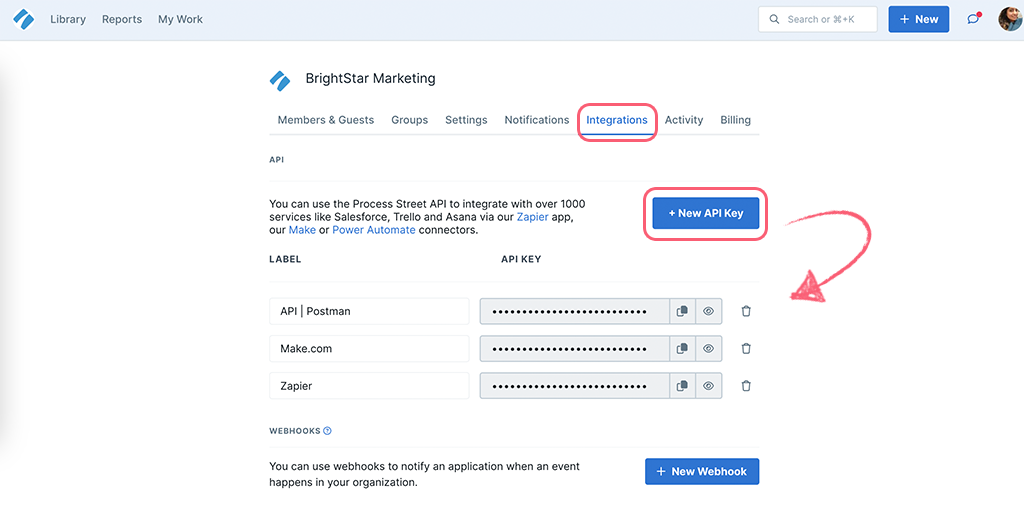
To connect your Process Street organization to Zapier, you’ll want to generate and capture your organization’s API key here (must be Admin). If one has already been created, you can use that key for your integration.
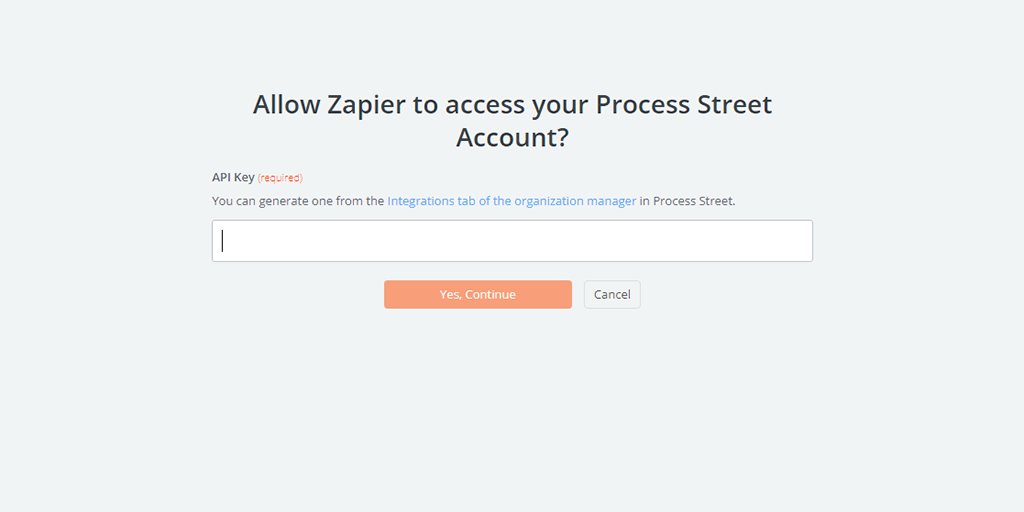
Zapier will ask you for your API key the first time you connect your organization. When the window appears, copy the key you’ve just generated or that was previously generated for your organization.
The screenshots below show two basic examples and are just an introduction to what can be done. There are literally thousands of ways in which Process Street can interact with other software applications using Zapier.
You can easily trigger an action in another application using one of Process Street’s available triggers.
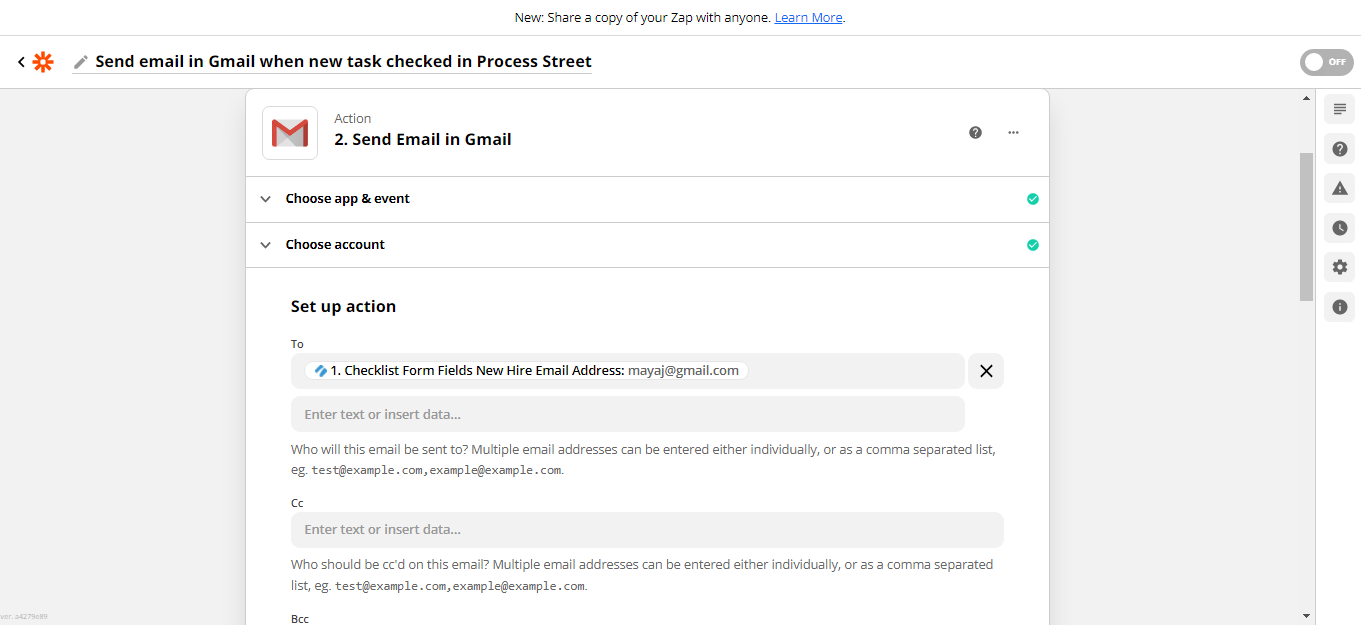
For this example, the zap created will send an email automatically in Gmail when a task is checked in a Process Street workflow run.
In your Zapier account, create a zap, choose Process Street as the trigger app and select ‘New task Checked’.
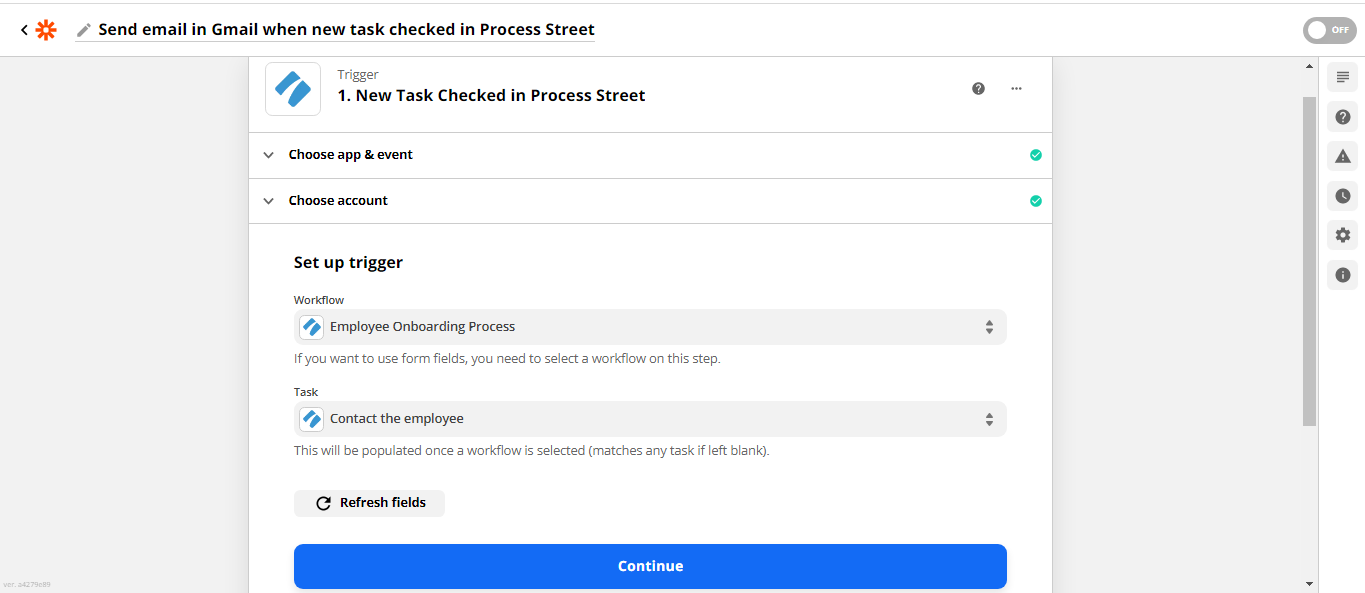
Select the workflow from Process Street that you want to use and the specific task you have chosen as the trigger. Zapier will attempt to pull sample data for you to review.*
*NOTE* For Zapier to successfully pull sample data, the action you are triggering must be completed. In this example, you are building a zap off of a task being checked off, so you must have an active workflow run with that task completed.
Tip: Put additional sample data inside of that workflow run. You can use it later on when building your email template.
When you are finished with setting up the Trigger, (the ‘if’ in ‘if this, then that’) select the application you want to take action in (the ‘then that’ part). In this case, choose Gmail and select ‘Send Email’ for the action. Learn more about using Gmail in Zapier.
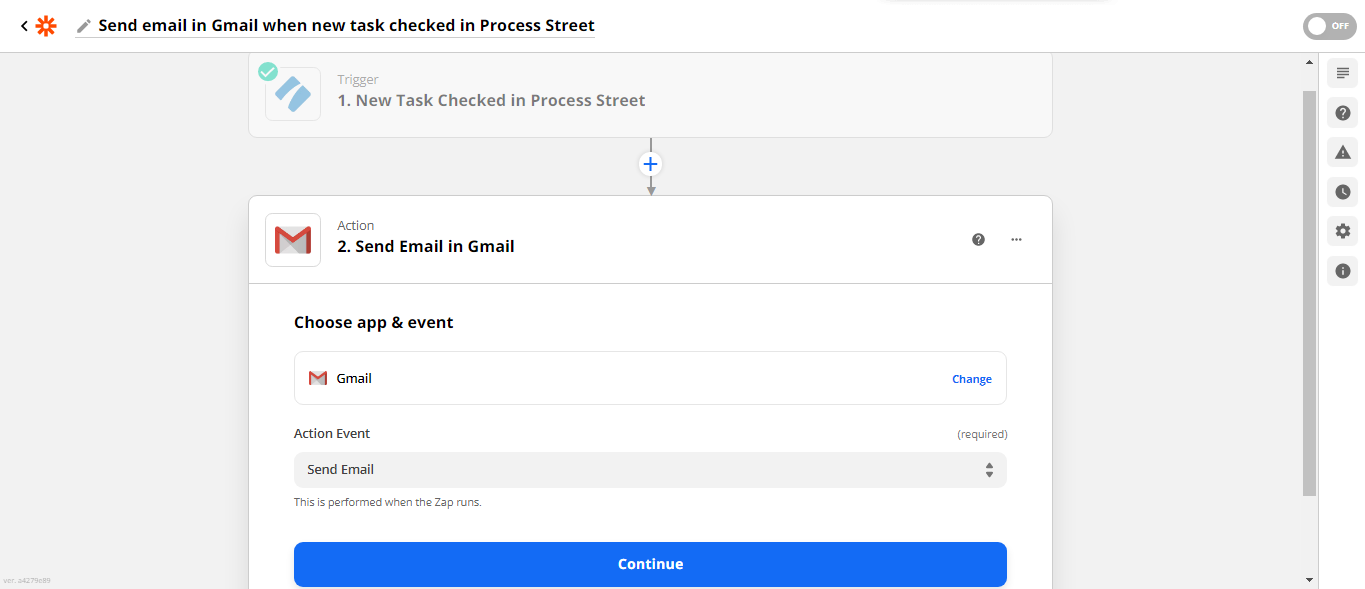
Choose your recipients. You can use data from your workflow run sample here. For example, you can have the email sent to an email address entered in Process Street on a previous task.
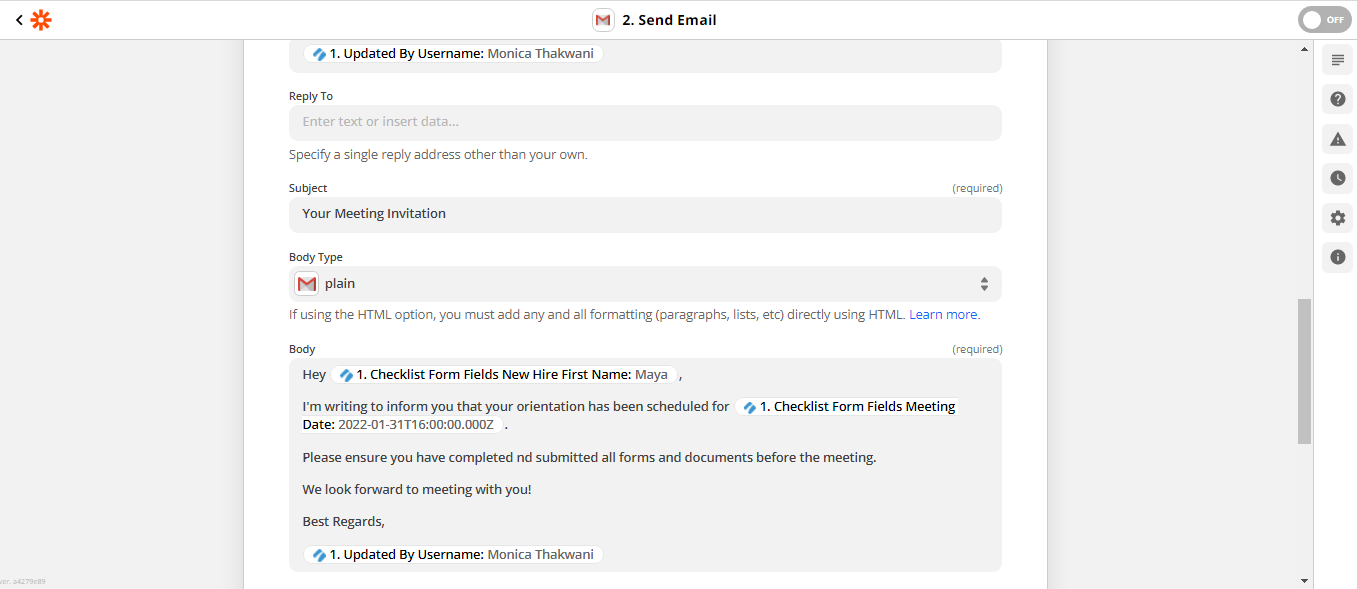
Craft the body of your email and pull in any variables from your workflow run where needed.
Finally, test your zap, give it a name, and ensure it’s switched on. Done!
Tip: Place your own email in the ‘to’ field when testing. This will allow the test and sample to come straight to your email inbox.
The Find and Update option is used when you need to update an existing Process Street workflow run with new data. This allows you to “Find” an existing workflow run in Process Street by searching for it and then “Updating” fields on that run with new or updated information.
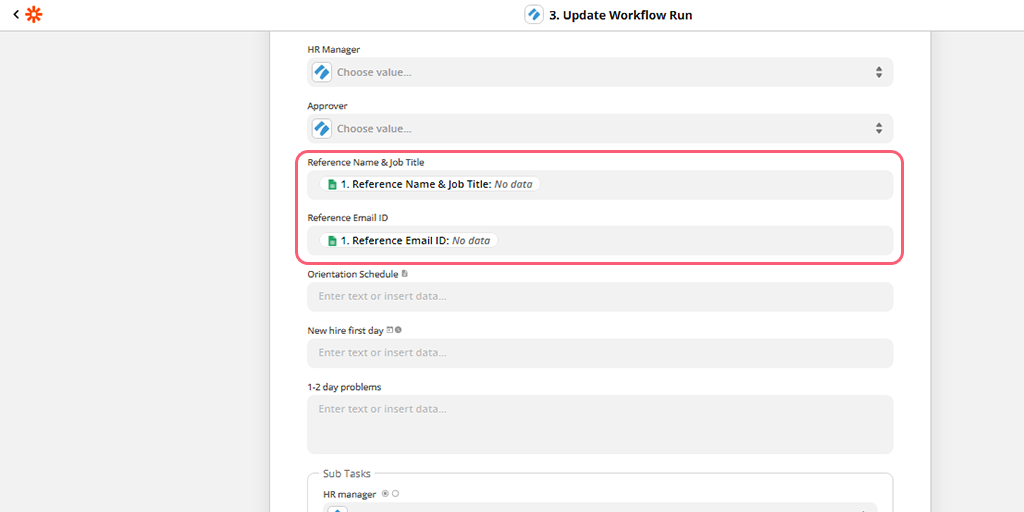
For this example, we’re going to update the ‘References’ fields in a workflow run when that information is added to a Google Sheet. When that spreadsheet is updated with new information, Zapier will search for the right workflow run in Process Street and pass the information.
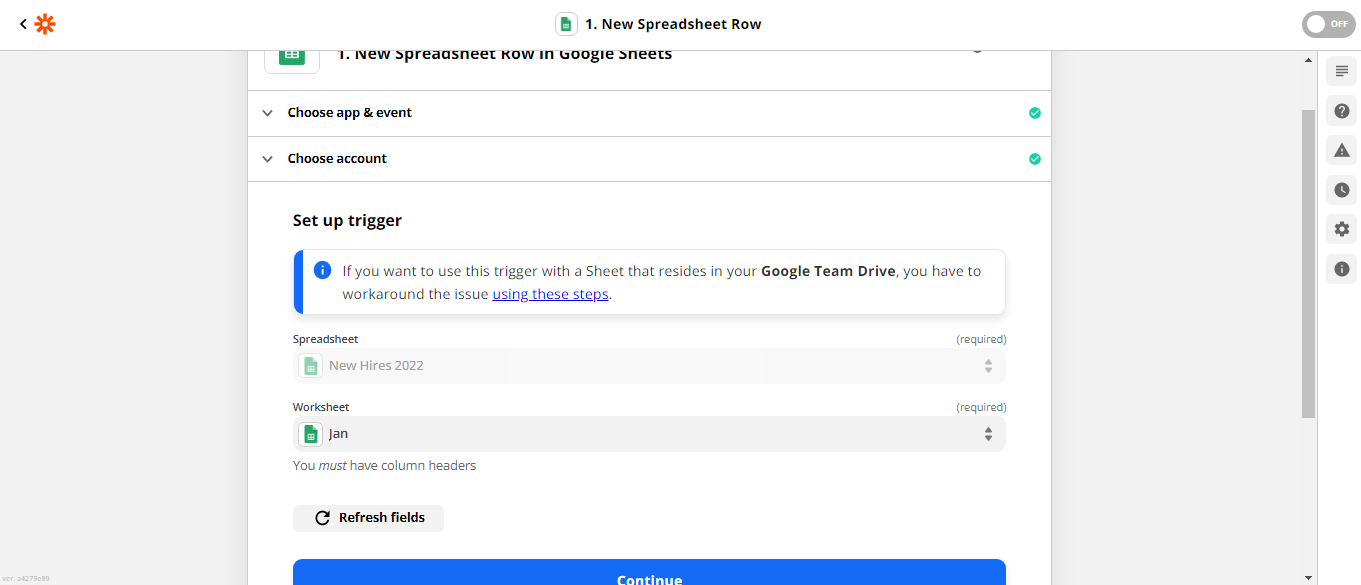
To create this Zap, our Trigger application is Google Spreadsheet and A New or Updated Spreadsheet Row. Choose the right Spreadsheet and Worksheet in the next step.
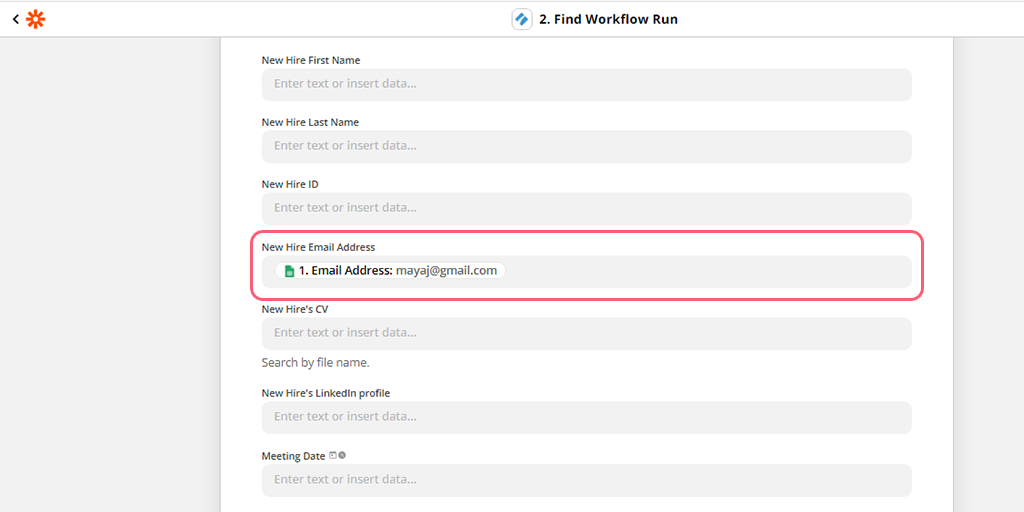
For the second step of the zap, choose the Process Street app and the Find Workflow Run option. Next, choose the appropriate workflow.
When searching for a specific workflow run, you want to use data that will easily identify the workflow run you’re updating. Email addresses work great as they are unique to each workflow run.
After you’ve found your desired workflow run, add a 3rd step to your zap. This should be a Process Street action step. In this example, we want to use the ‘Update Workflow Run‘ action.
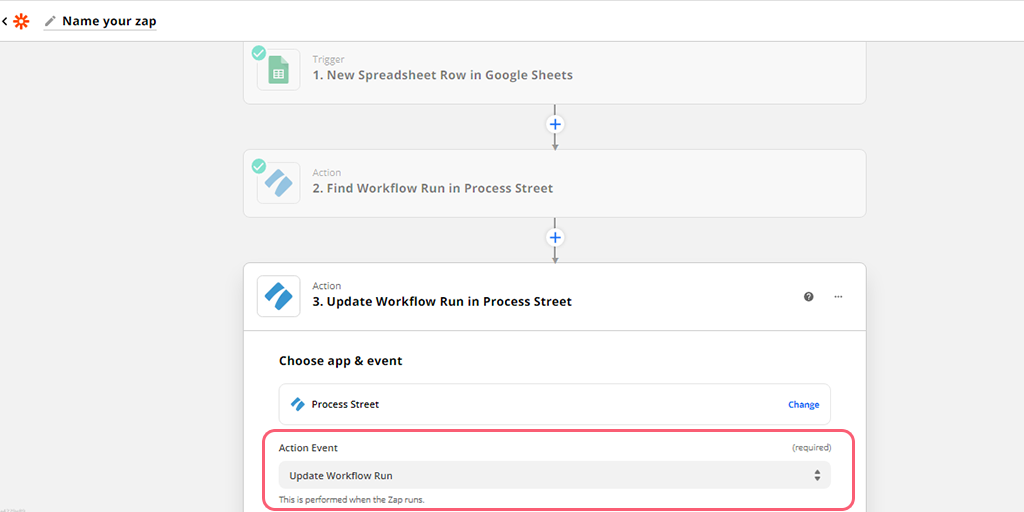
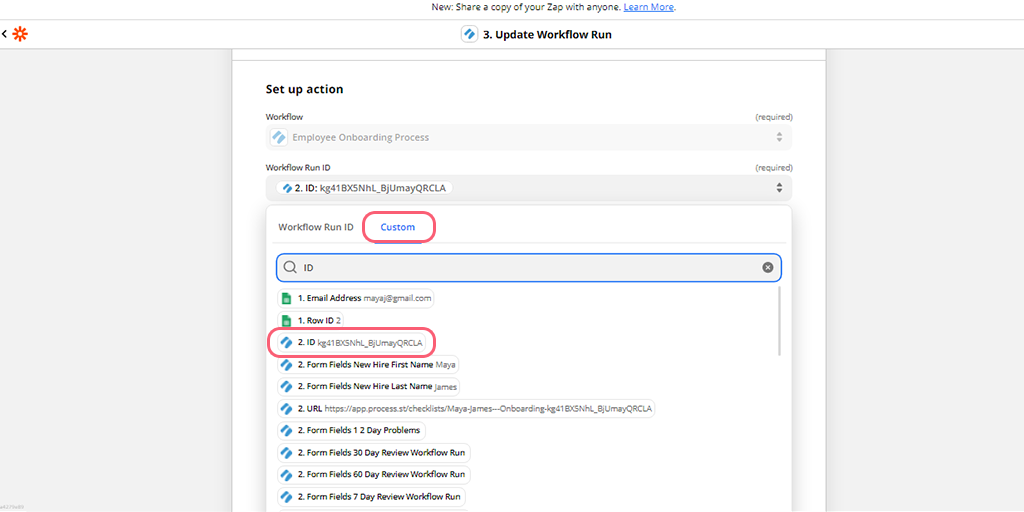
Select the same workflow that you have been building this zap for. Then, use a custom value for the workflow run ID. You can get the workflow run ID by clicking on the drop-down, choosing the find workflow run option, and then selecting ID.
Then, you’ll want to pull data into the fields you want to update. In this example, we are bringing in the new hire’s References from the updated Google sheet.
Finally, test your zap to be sure that it is pulling in the correct info from the updated spreadsheet and adding it to the right workflow run. Name your zap accordingly and ensure it is turned on.
Using the Find and Update function, the possibilities are truly endless. This can be used to update active workflow runs via a change in your CRM, spreadsheet, or action in Google Drive, Dropbox, HelloSign, etc. See our section on Ideas for Automations and Connections below, for other common uses of Find and Update for Process Street users.
For more inspiration, check out our article on 50 ways to integrate Process Street via Zapier.
We have created a 111-page ebook that explains how Zapier works and how you could use it with Process Street.
Click here to download the ebook
You can also read the chapters here:
Zapier is most powerful when you get creative with the processes you want to automate, but to do that you need to have an idea of what it can do first.
Discover 50 more ways to integrate Process Street with your favorite apps
Zapier Form Integration Info: How to get your form-field data to and from applications (Process Street and Salesforce)
Example: An in-depth video showing how to push data from your CRM (Close.io) to Process Street, and back
Example: An in-depth video showing how to integrate Process Street, your CRM (Close.io) and a contract signing application (HelloSign)
Help us improve this help center.