


Creating a workflow means turning a repeatable process into an ordered set of tasks, information, owners, rules, and integrations that can run the same way every time.
With Process Street, you can start with a simple task list, test it as a Workflow run, and add detail only where it helps people complete the work correctly.
These five workflow creation tips will help you set up your first Workflow quickly:
- Connect governed process knowledge to execution
- Pick a simple, repeatable workflow
- Complete your task list first
- Use form fields to capture information
- Assign your team members
- Connect your favorite apps in one place
Let’s get started.
Pages: The peanut butter to your workflows
Let me share something with you: Workflows can’t do everything.
I know: Shocking, right? But it’s true.
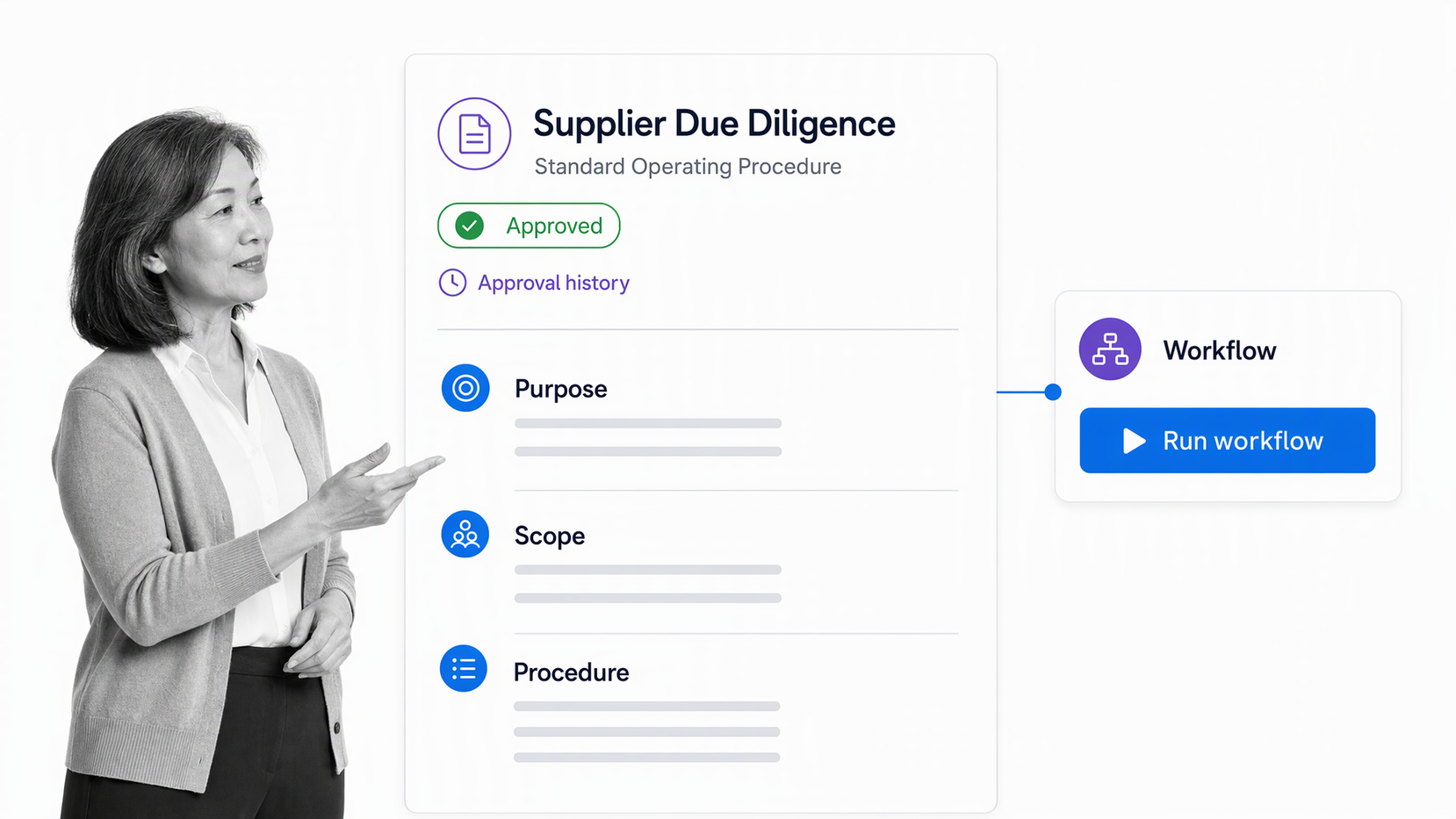
Workflows are great for automating recurring tasks, making ownership clear, and creating an execution record. But the people doing the work also need the policy, SOP, or background knowledge that explains why the process exists and what good looks like.
Process Street is one Compliance Operations Platform. Its Docs capability area governs process knowledge, its Ops capability area turns that knowledge into executable Workflows, and built-in AI helps teams draft and improve both. The result is a single product where documentation and execution stay connected.
This is useful for content such as:
- Employee handbooks
- Process documentation
- Company organizational structures
- The SOP for a zombie apocalypse. Hey, things happen.
- Real SOPs for actual business operations
- Compliance and quality assurance procedures
- Any approved knowledge your employees need while completing recurring work
You can use permissions and folders so people see the documents and Workflows they need. That gives you the security of the locked filing cabinet with the wonky middle drawer, but makes the approved information far easier to find, use, and update.
Keeping governed documentation beside execution also reduces a common failure: the SOP says one thing while the real process drifts into something else. When the procedure and the Workflow live in the same platform, owners can update instructions, approvals, and tasks together.
Think of the document as the stable source of truth and the Workflow as the route people follow through it. The document can explain policy, standards, definitions, and exceptions. The Workflow can collect the required information, route decisions, enforce approvals, and record what happened. Neither has to carry the full burden alone.
That division is especially helpful for compliance-critical work. An employee can read the approved procedure at the moment it matters, complete the required step, and leave an audit trail in the same operating system. The owner can revise the governed guidance without distributing a new file or wondering which copy people are using.
Workflow Tip #1: Pick a simple, repeatable workflow
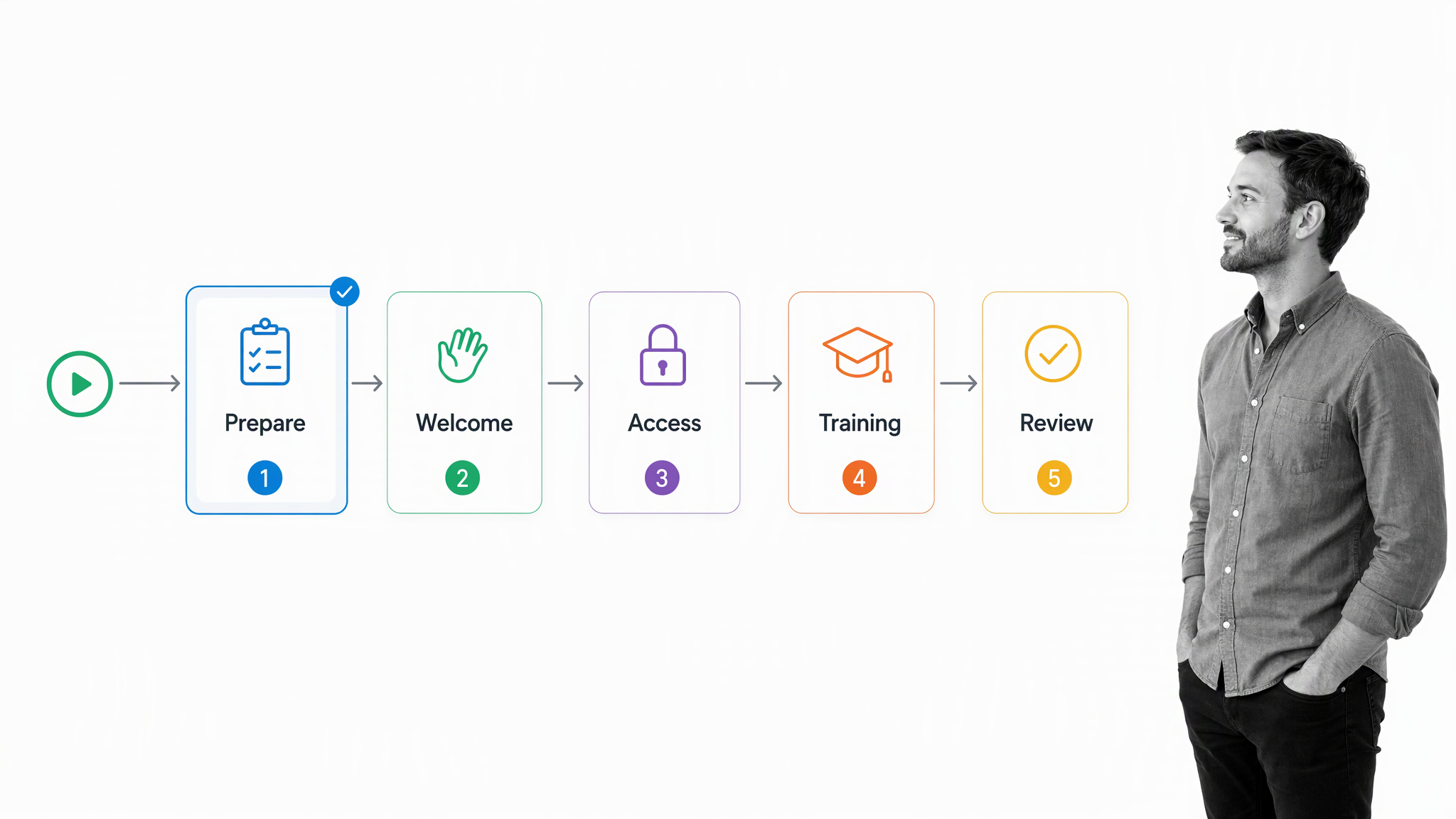
Start with a process that happens often enough to be familiar and has a clear trigger. A daily task list, employee onboarding sequence, content review, or customer handoff works well because you already know what usually happens next. If you want a focused visual starting point, a workflow creator can help you map the trigger, tasks, and owner before you add automation.
In this case, we’ll document a daily task list. It is simple, but it will make life easier every single day.
One useful feature to keep in mind is conditional logic.
Let’s say that from time to time, you write blurbs for social media campaigns. You don’t do this every day, but it happens often.
With conditional logic, you can add a simple yes or no question to your first task:
Do you need to write social media copy today?
- If no, the “Write social media copy” task remains hidden.
- If yes, the “Write social media copy” task appears in the run.
You do not need separate Workflows for the days you write copy and the days you do not. One Workflow can adapt to both scenarios.
The same pattern works for many beginner processes. An onboarding Workflow can reveal an equipment task only for remote employees. A content review can add a legal approval only when a regulated claim appears. A customer handoff can request extra documentation only for a certain service tier. Start with one condition you can explain in a sentence, then add more only after the basic path works.
A simple first Workflow is easier to test and easier for the team to trust. If you start with a process that has fifty exceptions, you will spend more time debating the map than learning how the process behaves. Pick the smallest repeatable version that still produces a useful outcome.
Trust me. I have an honest face.
Workflow Tip #2: Complete your task list first
Writing the complete task list first sets the scope of your Workflow. It also stops you from discovering halfway through the build that every later task needs to be reordered.
There’s an art to creating a task list. You’re probably thinking, Leks, you’re ridiculous. I know how to make a to-do list.
And I have no doubt that you do. But for a Workflow to really work, it helps to structure the tasks a certain way:
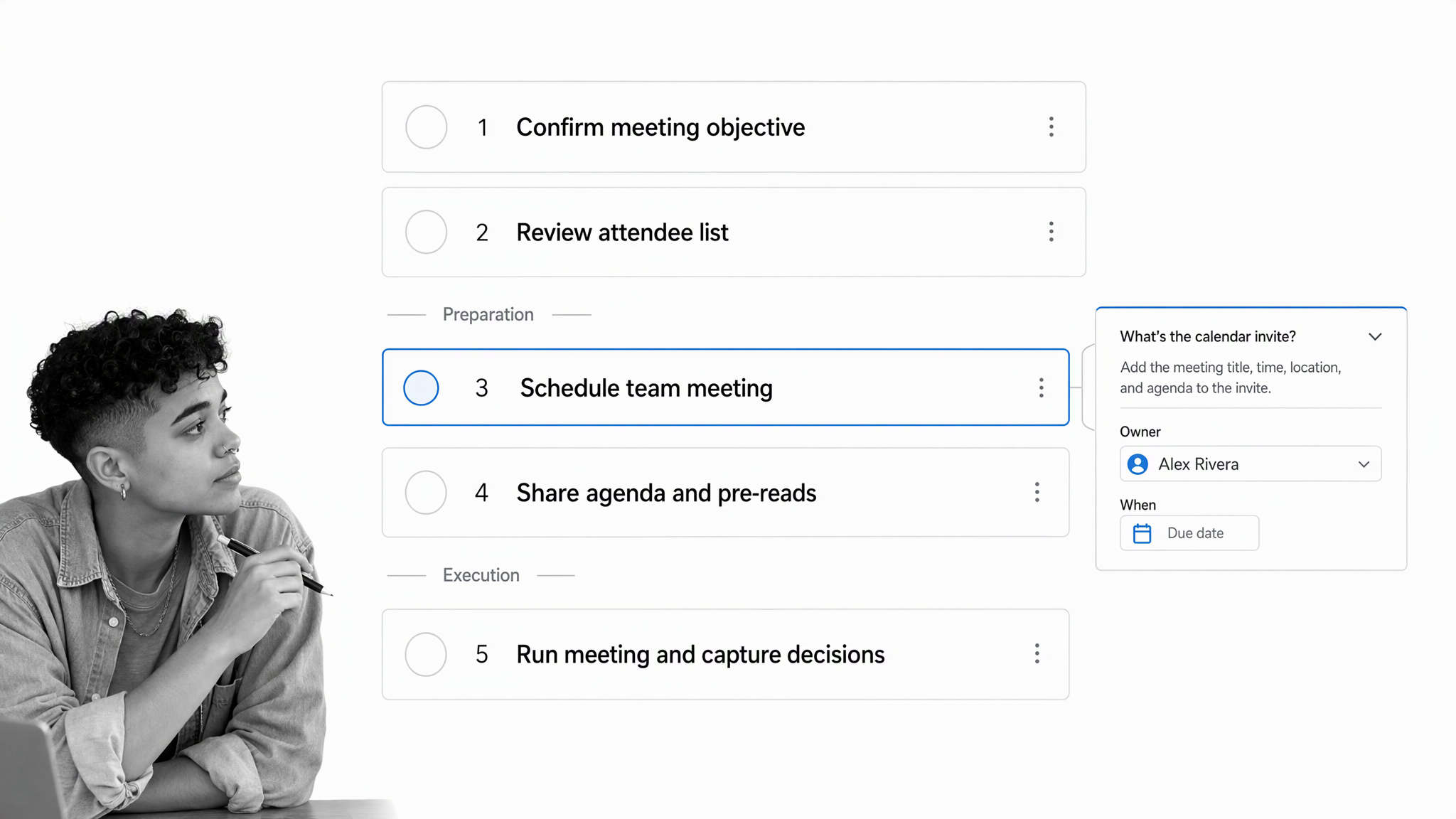
- Use section headings to group related tasks. Employee onboarding has several stages, each with its own set of tasks. Sections can separate pre-onboarding, the first day, the first week, and later milestones. Logic can keep later stages hidden until the new hire reaches the right point.
- Limit each task to one action. If a task involves several actions or additional steps, break it into smaller tasks. Every task stays clear and specific, nobody gets overwhelmed, and fewer details slip through the cracks.
- Use imperative statements. Instead of naming a task “Team meeting,” write “Schedule team meeting.” Anyone using the Workflow can scan the list and understand what action is required.
The one-action rule is more important than it first appears. A task called “Prepare and send the onboarding pack” contains at least two completion states. Someone can prepare the pack without sending it, yet the task still looks finished. Split it into “Prepare the onboarding pack” and “Send the onboarding pack,” then assign and measure each action independently.
Imperative wording also makes the process easier to scan. “Team meeting” could mean schedule it, attend it, take notes, or share the notes. “Schedule the team meeting” tells the assignee exactly what done means. When a task still feels ambiguous after you add a verb, put the acceptance criteria or supporting instructions inside the task.
Sections create a second layer of clarity. They let a longer Workflow show meaningful phases without turning every phase into a separate process. For employee onboarding, the phases might be pre-onboarding, first day, first week, and first month. Each section should mark a real change in ownership, timing, or purpose, not simply break the page into equal chunks.
When the list is complete, run the Workflow once yourself. A test run exposes missing instructions, awkward ordering, unclear handoffs, and tasks that contain more than one action before the process reaches the rest of the team.
Workflow Tip #3: Use form fields to capture information
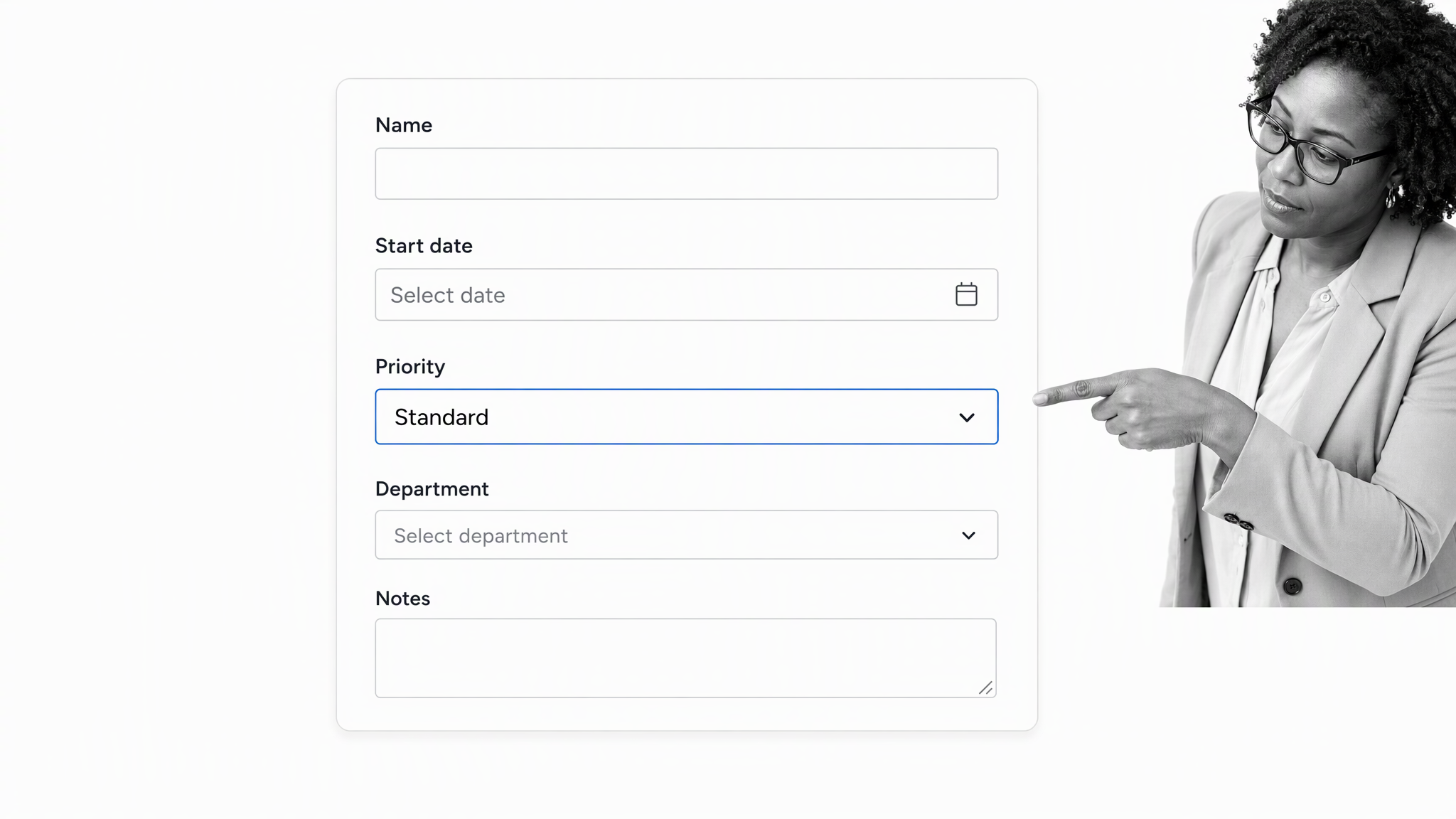
Form fields let you record information as people complete Workflow runs. They keep track of details that change from one run to the next, and they can pass that data into later tasks, approvals, reports, or connected systems.
Form fields add flexibility without making the process vague. In an employee onboarding Workflow, for example, you can capture the new hire’s name, department, manager, start date, equipment needs, and signed documents in the same run.
Useful field types include:
- Short text: For names, titles, departments, and other brief entries. An onboarding run might capture the employee’s name, department, and immediate supervisor in separate fields so each value can be reused later.
- Email: For a valid email address that can be used later in the Workflow. A dedicated email field makes it easier to send a welcome message, assign a task, or update another system without retyping the address.
- Website: For a web address that should follow a valid URL format. Use it when the run needs a profile, portfolio, repository, or customer site.
- Date: For start dates, meeting dates, deadlines, or review dates. A date field is more reliable than asking someone to type a date into a text box because the value can drive due dates and reminders.
- Dropdown: For choosing one option, such as a department, manager, or yes-or-no answer used by conditional logic. Keep the choices mutually exclusive so the result is easy to act on.
- Multi-choice: For choosing several options, such as equipment, access, or training packages a new hire needs. This is useful when more than one answer can be true.
- Long text: For meeting notes, addresses, feedback, and longer explanations. An employee evaluation can use a long-text field for context that does not fit a fixed list.
- File upload: For documents, images, signed contracts, or other evidence that belongs with the run. The file stays attached to the process record instead of disappearing into a separate inbox.
- Subtasks: For a compact checklist inside one task when several closely related items must be completed together. New-hire paperwork, for example, may contain several forms that belong to one owner and one stage.
Capture only information the Workflow will actually use. Every field should support a decision, assignment, approval, automation, or record. Extra fields create extra work and make the form harder to complete.
Workflow Tip #4: Assign your team members
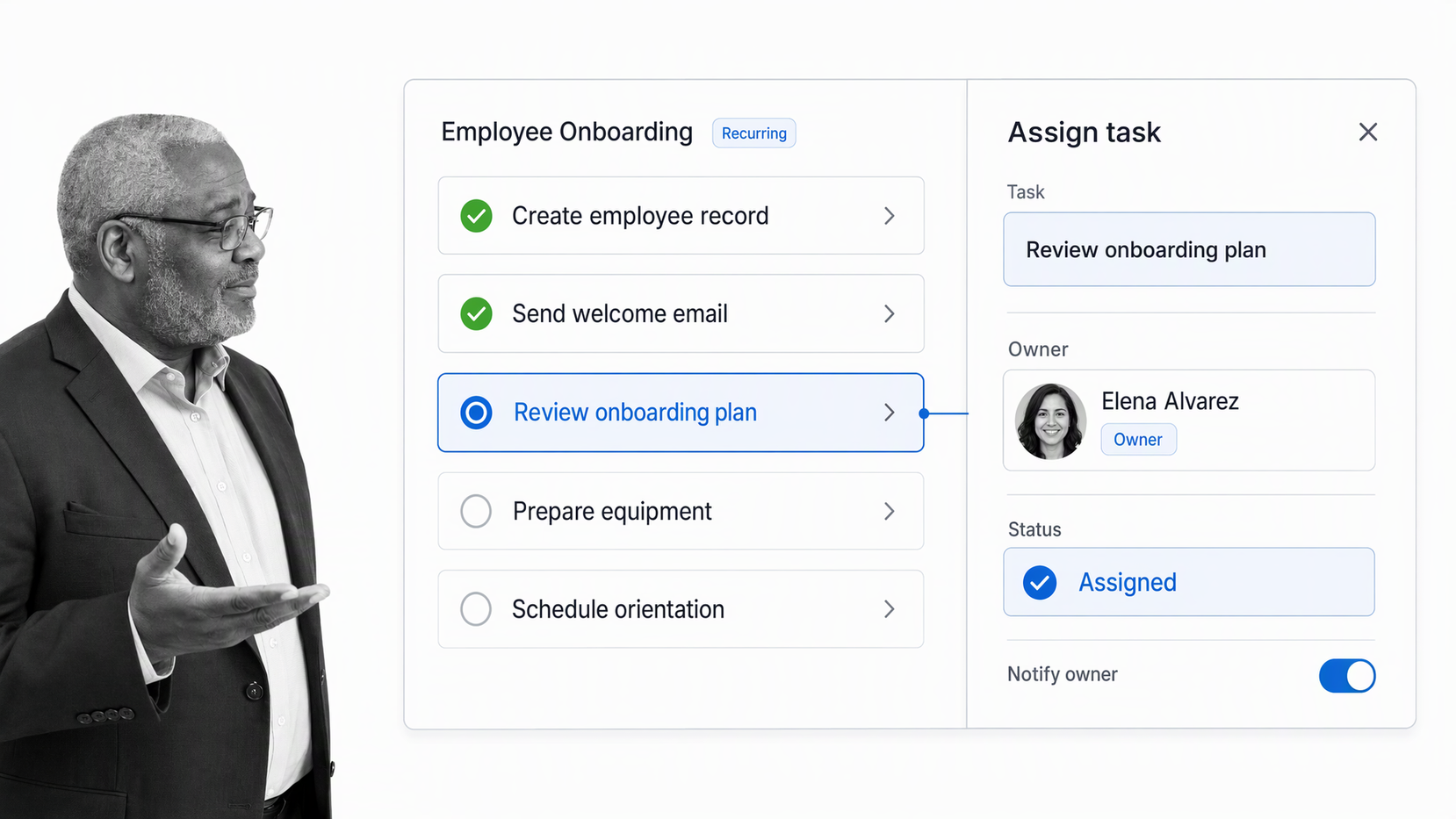
Assignments make ownership visible. People can see what they need to do in their inbox instead of digging through a project, document, or message thread to find their next task.
Most recurring processes need input or revision from several people. With Process Street, you can assign Workflow runs and individual tasks to people or groups in your organization.
You can also use role assignments. If someone from HR needs to complete a task, assign the role rather than one named person. The correct person can be selected from information captured in the run, so the process does not stall because one individual is unavailable.
Guests can collaborate on specific tasks without receiving broad access to your organization. If a client needs to review a report or provide information, you can assign that task to the guest and limit what they can see.
Current access levels distinguish a Guest from a Builder. Choose the narrowest role that lets each person complete their part of the process.
Good assignments follow the work rather than the org chart. Assign the person who owns the outcome, use a group or role when any qualified teammate can act, and bring a guest in only for the exact step that needs external input. That keeps the Workflow moving without giving people more access than they need.
Workflow Tip #5: Connect your favorite apps in one place
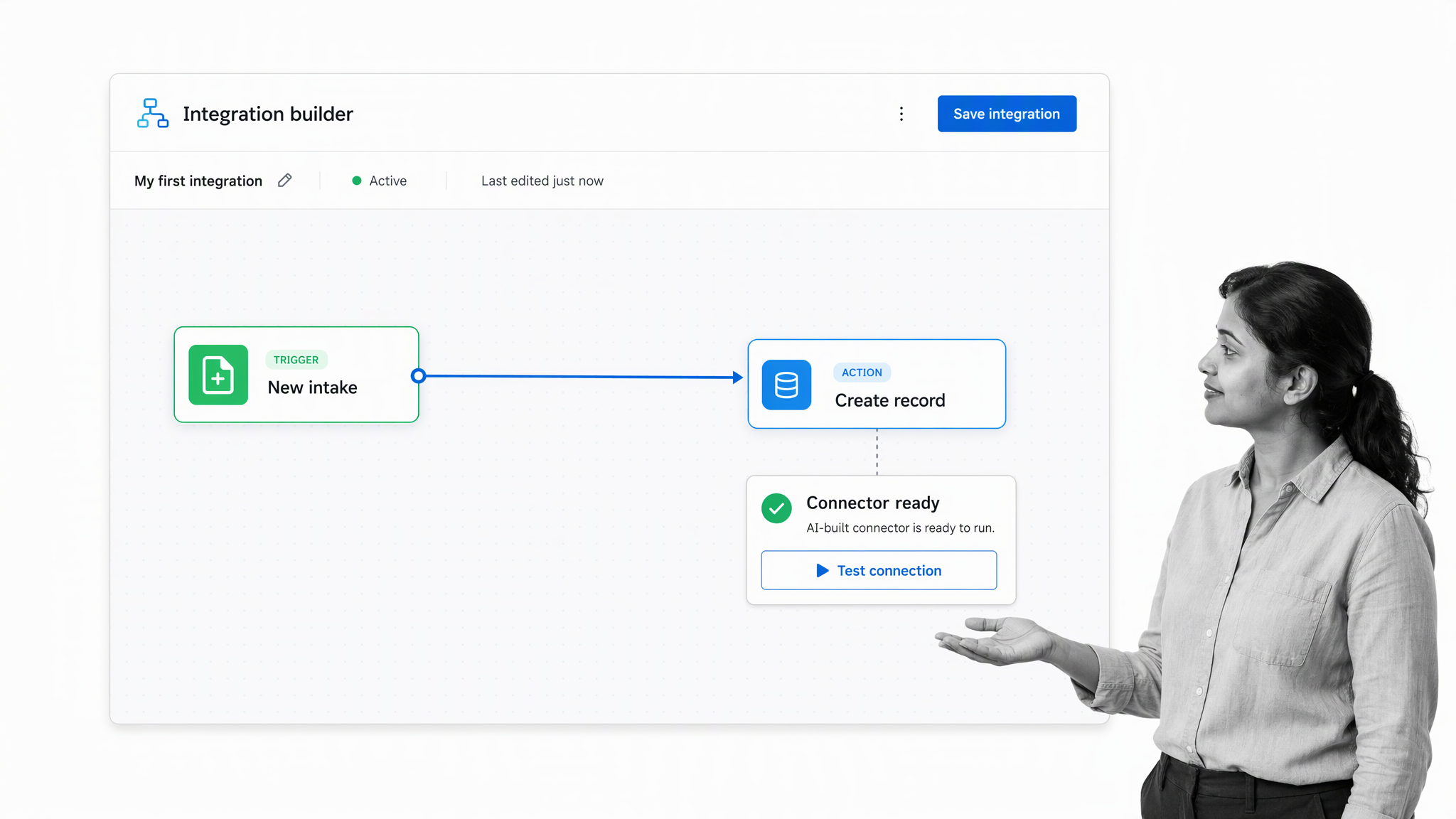
A useful Workflow should move information and trigger action without forcing people to copy the same data between systems. Process Street has direct, universal integrations to 5,000+ systems. Need a new one? An AI agent builds it on the fly.
Start with one handoff that is both repetitive and easy to verify. For example, a completed approval can send a document for signature in DocuSign, update a record in Salesforce, or notify the right channel in Slack.
Automations can connect Workflow events to actions in other tools. Zapier remains another supported option for teams that already use it, with thousands of connected apps.
Define the trigger, the action, the data being passed, and what should happen when the connection fails. Then test the integration with sample data before relying on it for live work. The best first automation removes one tedious handoff without hiding who owns the outcome.
Processes are a continuous process
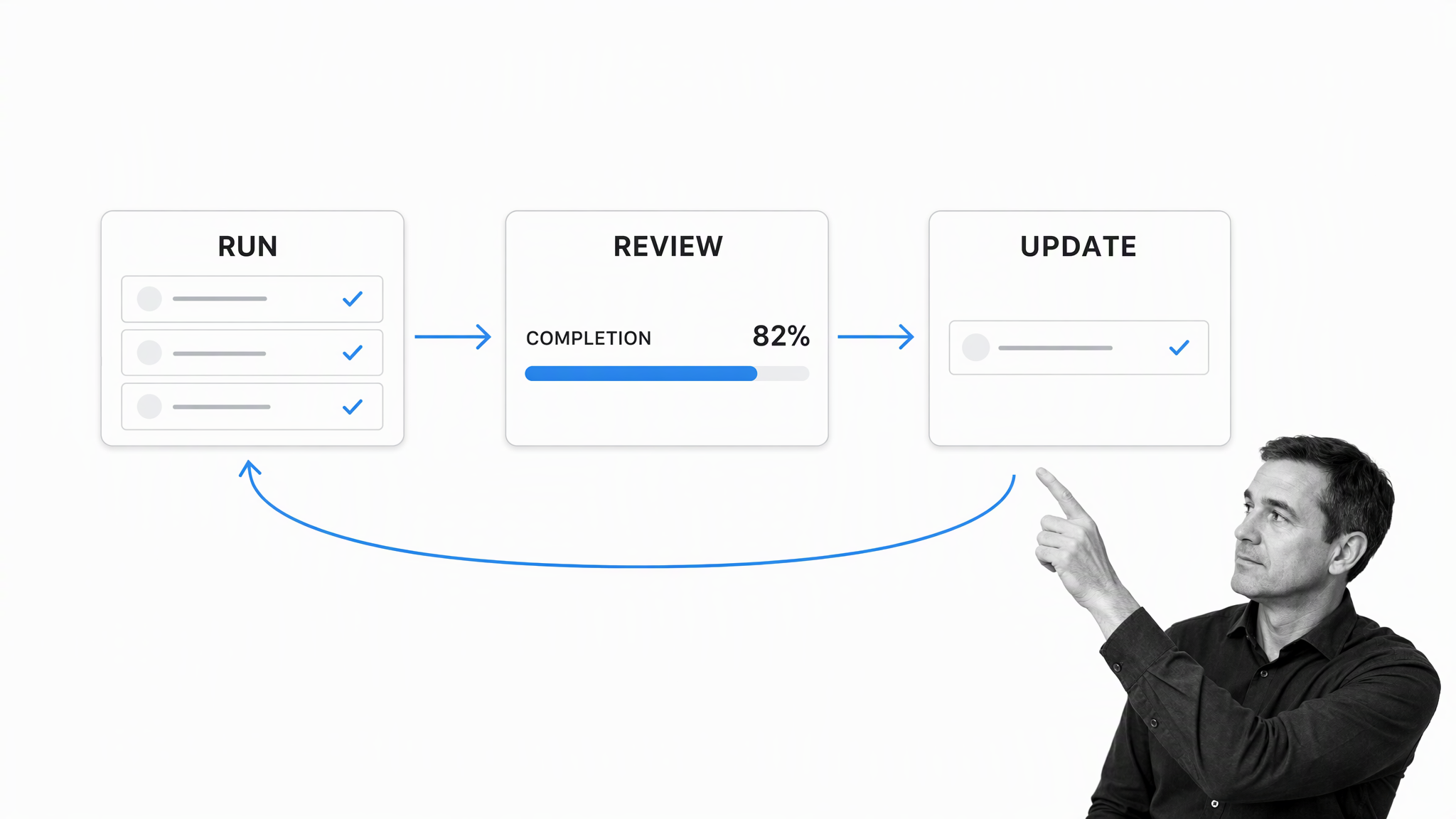
See? Easy. Your first Workflow does not need to be elaborate to be useful. A clear task list, the right information, and visible ownership are enough to start.
Before rolling it out, complete a test run from beginning to end. Ask the people who perform the work to check the sequence, instructions, fields, assignments, permissions, and integrations. Fix anything that makes them stop and guess.
Once the Workflow is in use, give it an owner. Review completion data, comments, delays, skipped steps, rework, and exceptions. Those signals show where the process no longer matches reality or where an instruction needs to be clearer.
Practicing continuous improvement means checking that a process still works as intended and improving it when it does not. Change one weak point, test the new version, and keep the evidence that shows whether the change helped.
That loop keeps processes accurate as your team, systems, policies, and customer needs change. Explore Process Street to connect governed process knowledge with the Workflows that execute it.
Do not wait for the process to become perfect before you use it. A small Workflow that runs today gives you real evidence about the sequence, owners, and exceptions. A large design that never leaves the whiteboard gives you opinions. Start with the useful version, watch what happens, and let each run teach you what to improve next.